
Header, Footer & Mega Menu Builder
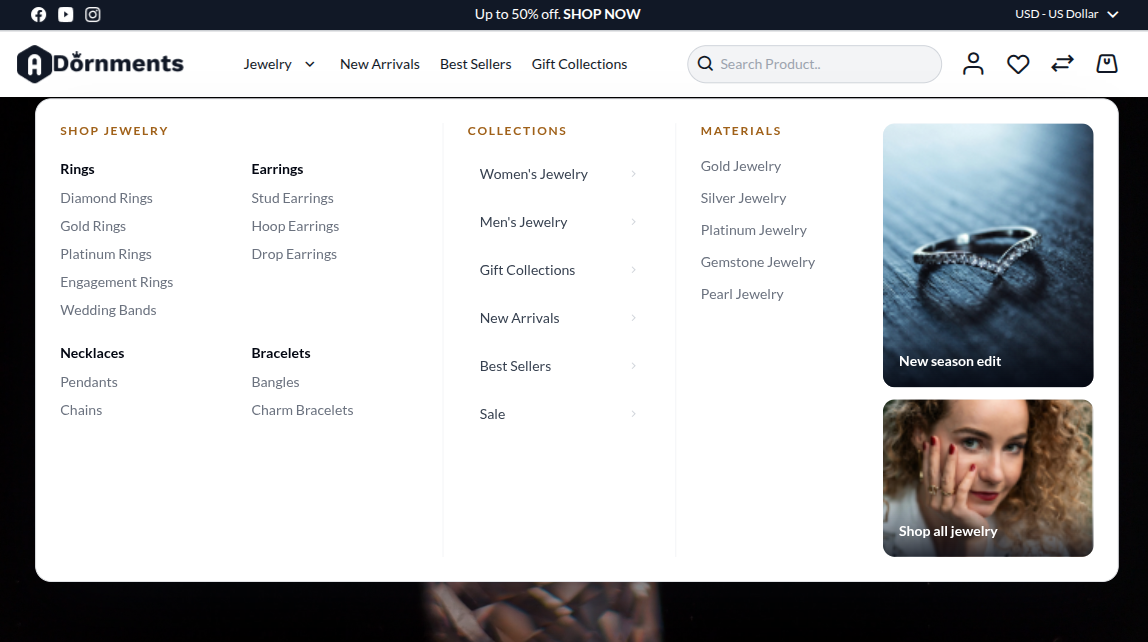
The Header & Footer Builder lets you manage the store navigation, mega menus, header announcement, logo, and footer from Magento Admin.
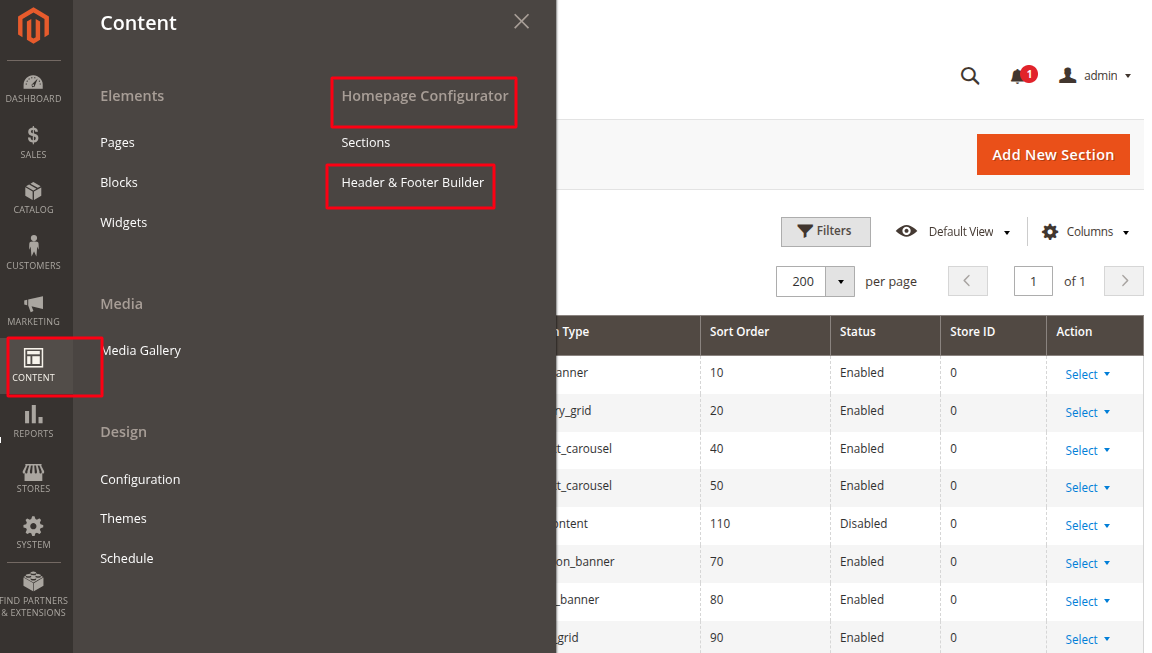
Open it from Content → Homepage Configurator → Header & Footer Builder.
What it controls
Use this builder to update these storefront areas:
| Area | What you edit |
|---|---|
| Menu structure | Add categories, pages, products, collections, and custom links. Reorder them by drag-and-drop. |
| Item settings | Change the label, link, description, visibility, submenu style, and promo images for a menu item. |
| Header settings | Announcement text, announcement link, and store logo. |
| Footer settings | Description, contact email, contact phone. |
| Agent Readiness | Optional settings for AI and search discovery. |
Save before checking the storefront
Previewing in the builder does not update the live storefront. Click Save Configuration after making changes.
Workflow at a glance
- Add categories, pages, products, or custom links to the Saved Menu Structure.
- Drag to reorder and nest items into groups.
- Click a row to edit its label, link, submenu style, and promo images.
- Set header announcement, logo, and footer text.
- (Optional) Configure Agent Readiness.
- Click Save Configuration.
Continue with Building the Menu.