
Hero Banner
The Hero Banner is the large banner at the top of the homepage. Use it for your main collection, sale, festive offer, or brand message.
It can show one slide or many slides.
Add a Hero Banner
- Go to Content -> Homepage Configurator -> Sections.
- Click Add New Section.
- Enter a Title, for example
Hero Banner. - Set Section Type to Hero Banner.
- Set Enabled to Yes.
- Use a low Sort Order, such as
10, so it shows first. - Fill the Hero Banner Configuration fields.
- Click Save.
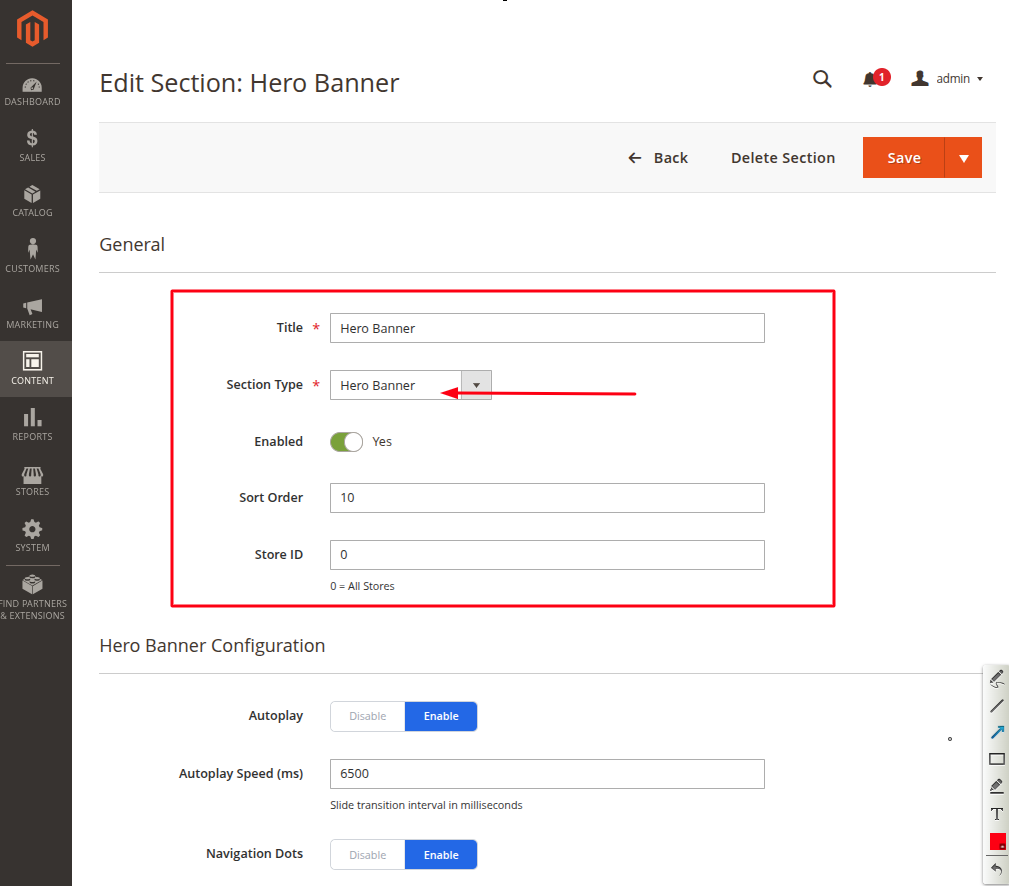
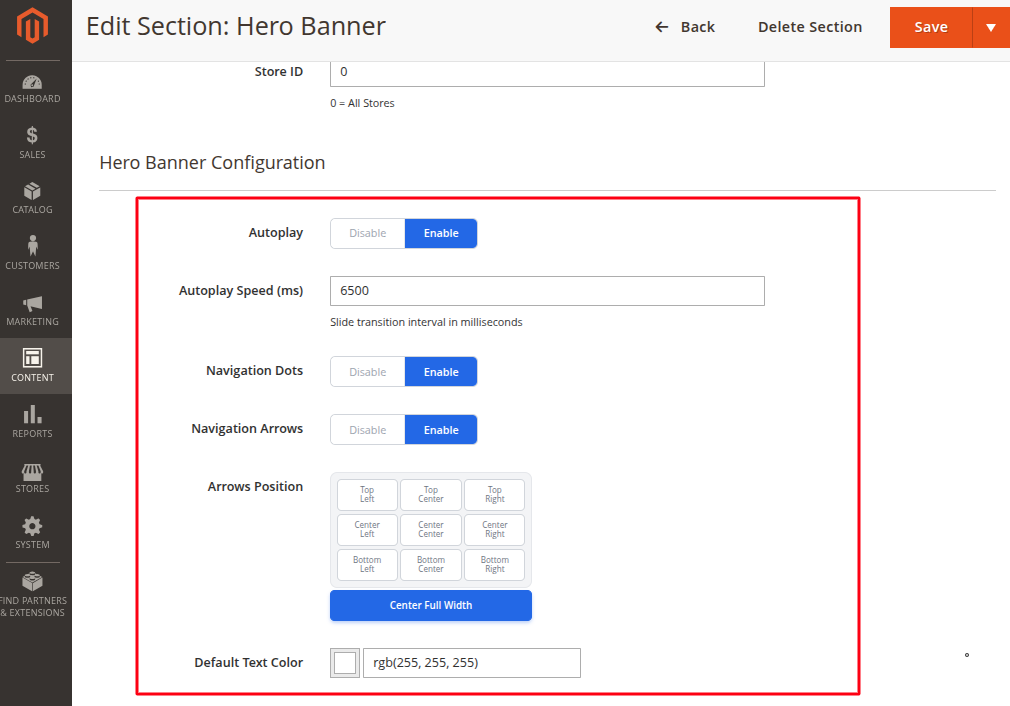
Banner settings
| Setting | What it does |
|---|---|
| Autoplay | Slides change automatically. |
| Autoplay Speed (ms) | Time before the next slide shows. Example: 5000 means 5 seconds. |
| Navigation Dots | Shows small dots so shoppers can see how many slides are available. |
| Navigation Arrows | Shows previous and next arrows. |
| Arrows Position | Choose where the arrows show on the banner. |
| Default Text Color | Text color used on the banner. White works well on dark images. |
Add slides
Click Add Slide for each banner slide.
| Slide field | What to enter |
|---|---|
| Slide Image | Upload a clear banner image. Recommended size is 1920 x 600 px. Maximum file size is 4 MB. |
| Background Video | Optional. Use only if you have a light MP4 video. Keep a slide image as the fallback. |
| Heading | Main text on the banner. Keep it short. |
| Description | Small supporting text. |
| Button 1 Text / Link | Main button, such as Shop Now. |
| Button 2 Text / Link | Second button, if needed. |
| Content Position | Choose where the text shows on the banner. |
| Text Alignment | Choose Left, Center, or Right. |
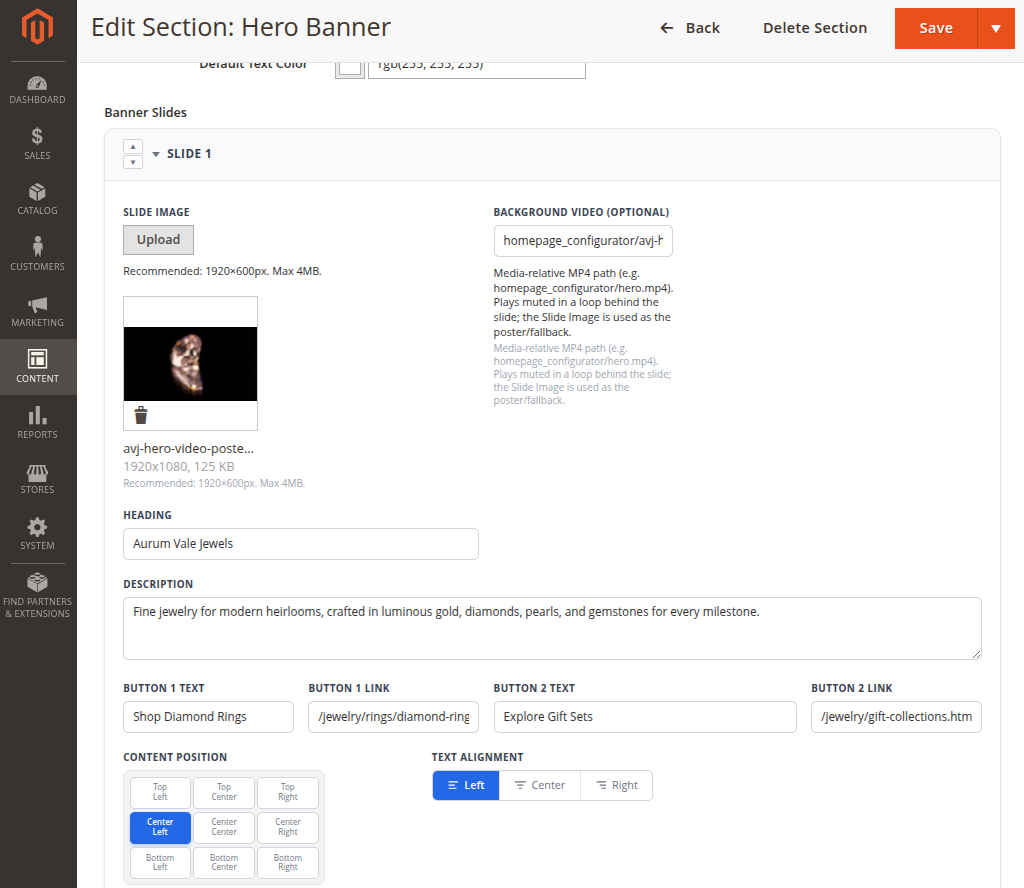
Video slide: You can also add a video in a slide. Add the MP4 path in Background Video and keep a Slide Image uploaded. The image is used if the video cannot load.
Storefront result
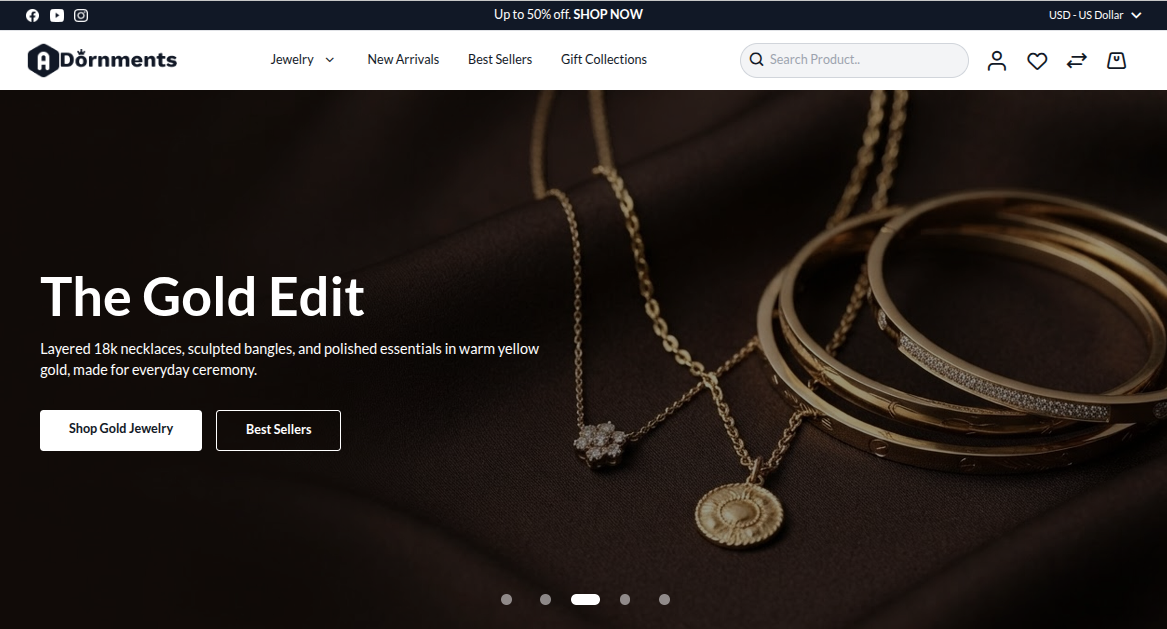
Good practice
- Use 1 to 3 slides. Too many slides can distract shoppers.
- Keep the heading easy to read.
- Do not place important text inside the image. Use the Heading and Description fields instead.
- Check the banner on mobile after saving.
- If the text is hard to read, use a darker image or change the text color.