
Product Carousel
The Product Carousel section shows products on the homepage. Use it for Trending Products, New Arrivals, Bestsellers, Sale items, or products from one category.
It can show as a slider or as a grid.
Add a Product Carousel
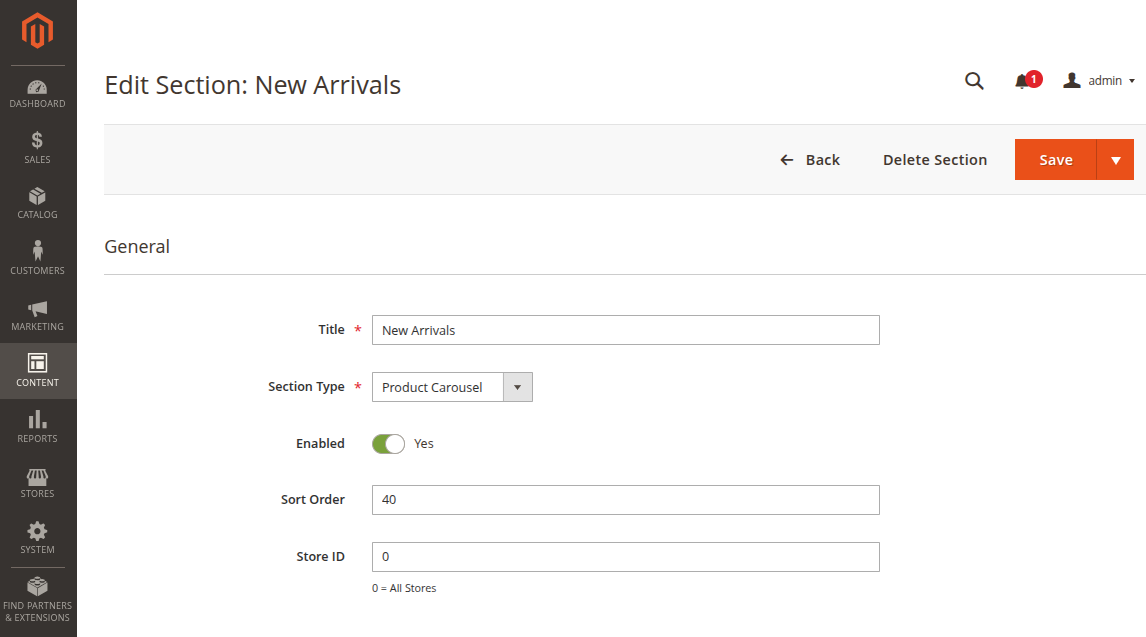
- Go to Content -> Homepage Configurator -> Sections.
- Click Add New Section.
- Enter a Title, for example
New Arrivals. - Set Section Type to Product Carousel.
- Set Enabled to Yes.
- Use a Sort Order such as
30or40. - Fill the Product Carousel Configuration fields.
- Click Save.
Product source
Choose how products should be selected.
| Product Source | When to use it |
|---|---|
| New Products | Show latest products from your catalog. |
| Category | Show products from one selected category. |
| Manual SKUs | Choose exact products yourself. |
| Bestsellers | Show products that sell well. |
| On Sale | Show discounted products. |
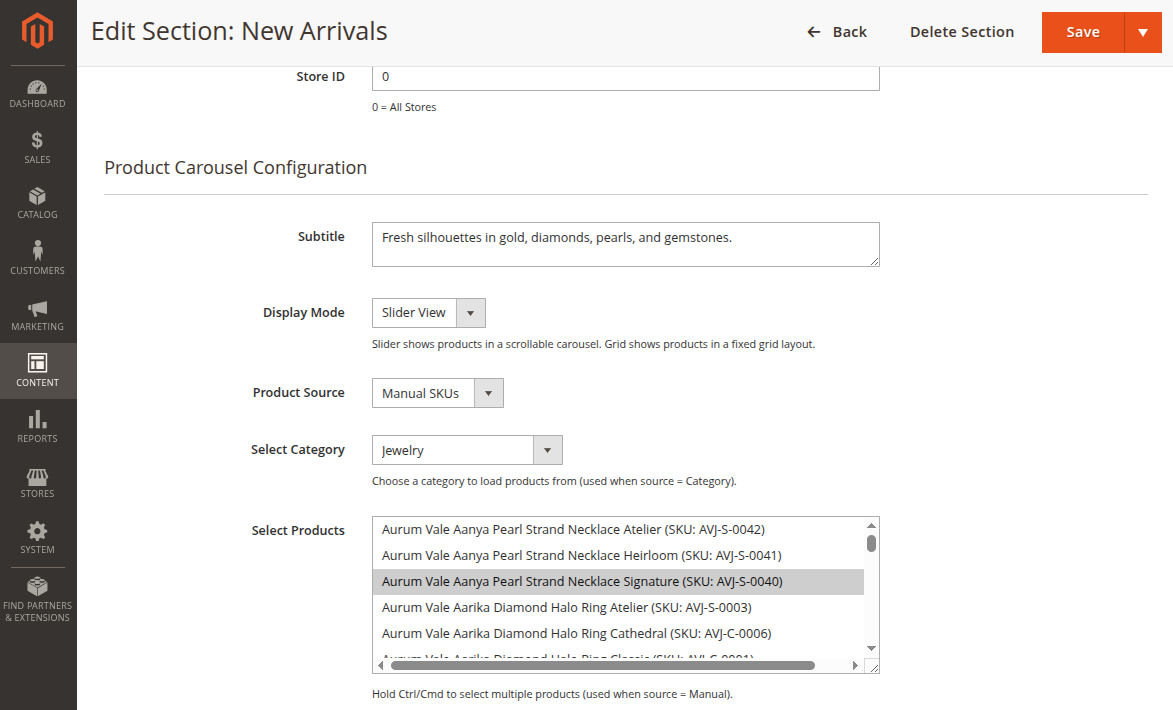
If you choose Category, also choose the category. If you choose Manual SKUs, select the products you want to show.
Display settings
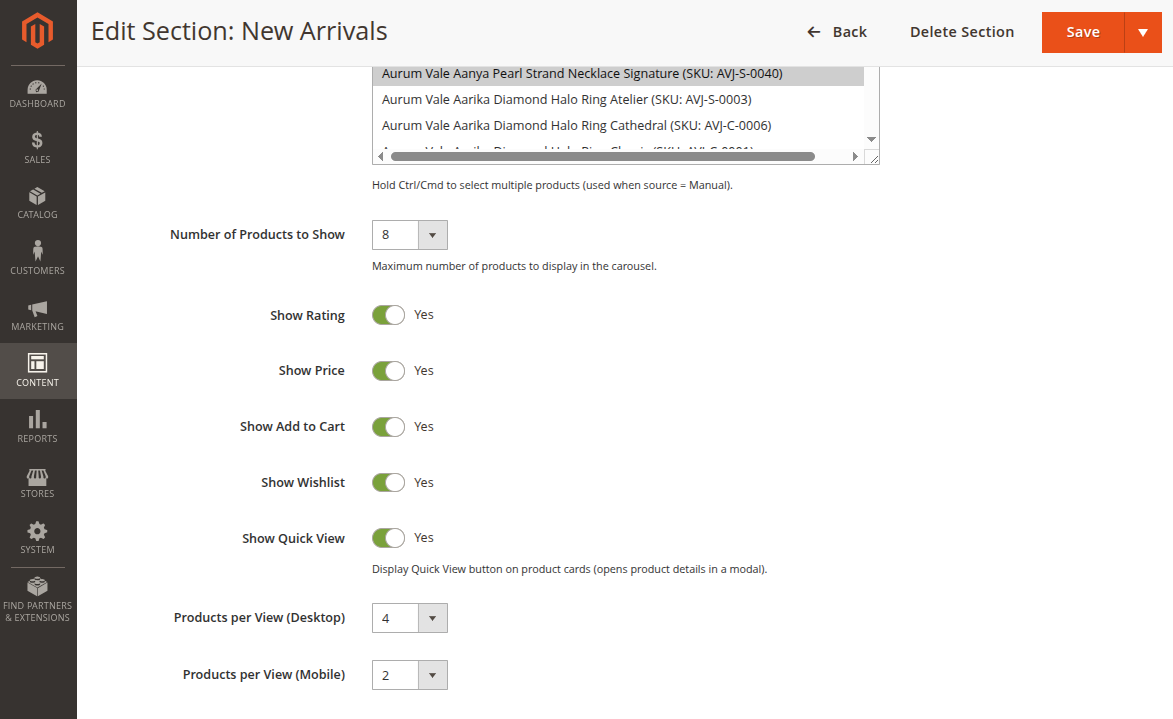
| Setting | What it does |
|---|---|
| Subtitle | Small text under the section title. |
| Display Mode | Choose Slider View or Grid View. |
| Number of Products to Show | Choose how many products should show. |
| Products per View Desktop | Number of products visible at one time on desktop. |
| Products per View Mobile | Number of products visible at one time on mobile. |
Product card options
Use these switches to control what shoppers see on each product card.
| Option | What it shows |
|---|---|
| Show Rating | Product rating stars. |
| Show Price | Product price. |
| Show Add to Cart | Add to Cart button. |
| Show Wishlist | Wishlist button. |
| Show Quick View | Quick View button. |
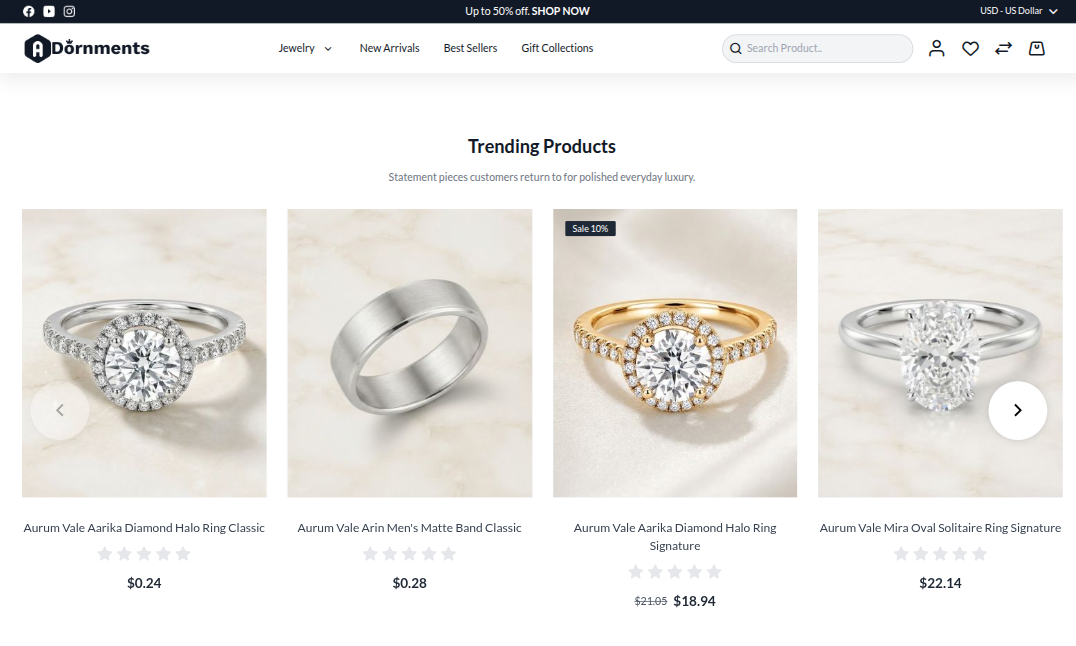
Storefront result
Good practice
- Use 8 to 12 products for a clean slider.
- Use short section titles, like
New ArrivalsorTrending Products. - Keep price and Add to Cart visible when the goal is quick shopping.
- Use one carousel for each purpose instead of one very long section.