
Luxury Grid
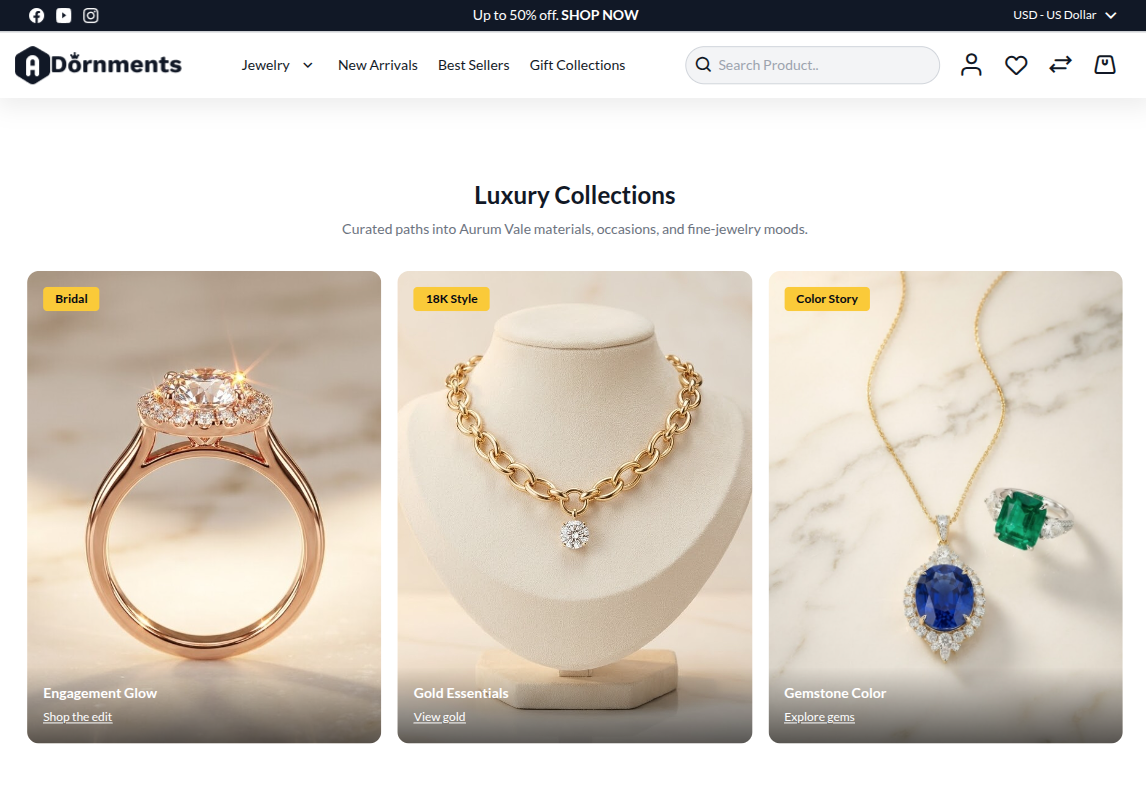
The Luxury Grid section shows premium cards. Use it for luxury collections, special materials, shopping paths, or jewellery services.
Add a Luxury Grid
- Go to Content -> Homepage Configurator -> Sections.
- Click Add New Section.
- Enter a Title, for example
Luxury Collections. - Set Section Type to Luxury Grid.
- Set Enabled to Yes.
- Use a Sort Order so it appears in the right place on the homepage.
- Fill the Luxury Grid Configuration fields.
- Click Save.
Main settings
| Setting | What it does |
|---|---|
| Subtitle | Small text below the section title. |
| Columns Desktop | Choose 2, 3, or 4 columns on desktop. |
| Luxury Items | Add the cards that will show in the grid. |
Item fields
Click Add Item, then fill these fields.
| Field | What to enter |
|---|---|
| Item Image | Upload the card image. Maximum file size is 4 MB. |
| Label | Card title, such as Gold Essentials. |
| URL | Link for the card. |
| Badge Text | Optional badge, such as New or 25% Off. |
| Link Text | Small link text, such as Shop Now. |
Storefront result
Good practice
- Use the same image shape and lighting for all cards.
- Use short labels.
- Use badges only when they add value.
- Keep the grid focused on premium shopping paths.