
Collection Banners
The Collection Banners section shows two or more image banners on the homepage. Use it for bridal collections, gift edits, seasonal offers, or premium jewellery ranges.
Add Collection Banners
- Go to Content -> Homepage Configurator -> Sections.
- Click Add New Section.
- Enter a Title, for example
Collection Stories. - Set Section Type to Collection Banners.
- Set Enabled to Yes.
- Use a Sort Order so it appears in the right place on the homepage.
- Fill the Collection Banner Configuration fields.
- Click Save.
Main settings
| Setting | What it does |
|---|---|
| Layout | Choose Side by Side for two columns, or Stacked for one column. |
| Banners | Add the banner cards that shoppers will see. |
Banner fields
Click Add Banner, then fill these fields.
| Field | What to enter |
|---|---|
| Banner Image | Upload a clear image. Recommended size is 900 x 600 px. Maximum file size is 4 MB. |
| Title | Main banner text, such as Diamond Rings. |
| Subtitle | Short text below the title. |
| Button Label | Button text, such as Shop Now. |
| Button URL | Category or collection link, such as /jewelry/rings.html. |
Storefront result
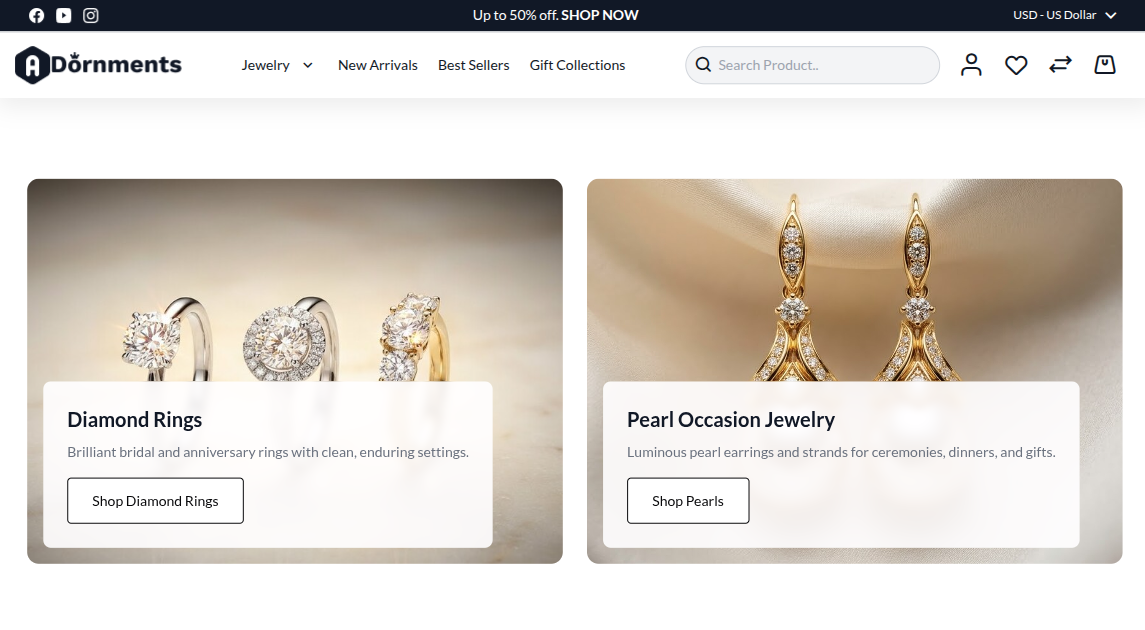
Good practice
- Use two banners when both collections are equally important.
- Keep the title short.
- Use images with a similar color tone.
- Link each banner to the matching category or collection page.