
Split Content
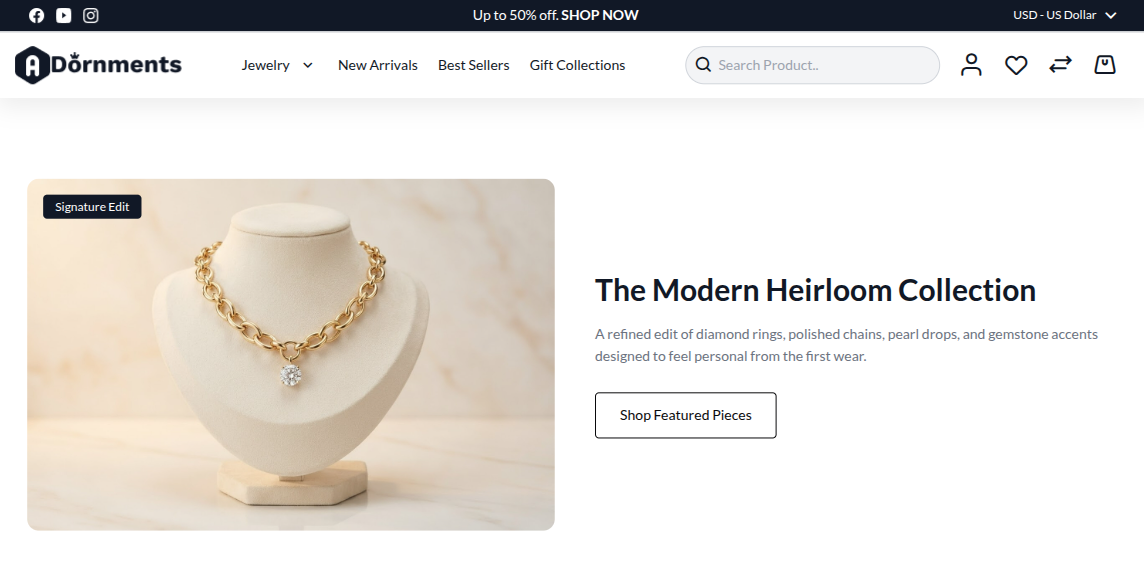
The Split Content section shows an image on one side and text on the other side. Use it for a brand story, a featured collection, a service message, or a short jewellery promise.
Add Split Content
- Go to Content -> Homepage Configurator -> Sections.
- Click Add New Section.
- Enter a Title, for example
The Modern Heirloom Collection. - Set Section Type to Split Content.
- Set Enabled to Yes.
- Use a Sort Order so it appears in the right place on the homepage.
- Fill the Split Content Configuration fields.
- Click Save.
Content settings
| Setting | What it does |
|---|---|
| Image | Upload the section image. Recommended size is 800 x 900 px. Maximum file size is 4 MB. |
| Image Position | Choose Left or Right. |
| Badge Text | Optional small badge, such as New or Signature. |
| Heading | Main heading. If empty, the section title is used. |
| Body Text | Short paragraph for the section. |
| Button Label | Button text, such as Read Our Story. |
| Button URL | Link for the button. |
Storefront result
Good practice
- Keep the body text short.
- Use one clear message.
- Use Image Position to balance the page when you have many sections.
- Check mobile view after saving.